

Google has introduced Platform Properties in Google Search Console, allowing you to track how your Instagram, YouTube, TikTok, and X (Twitter) content performs in Google Search and Discover. The feature is being rolled out gradually, so it may not yet be available in every account.
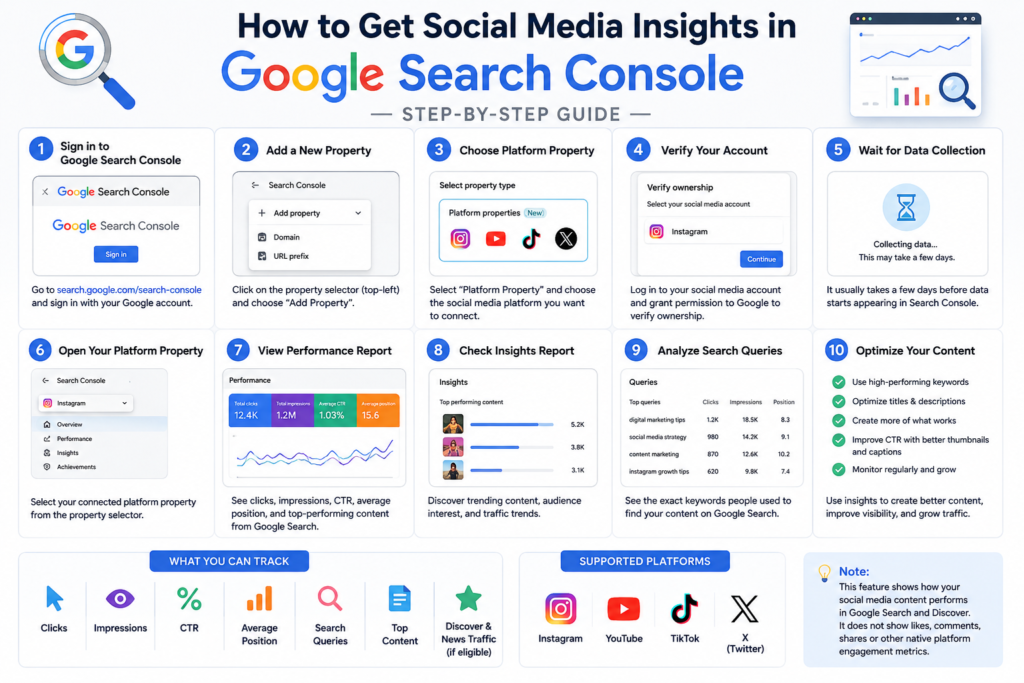
Step 1: Sign in to Google Search Console
- Visit Google Search Console.
- Log in with the Google account that manages your website or social accounts.
Step 2: Open the Property Selector
- In the top-left corner, click the Property Selector.
- Select + Add Property.
Step 3: Choose a Platform Property
If the feature is available in your account, you’ll see a new section called Platform Properties.
Supported platforms include:
- YouTube
- TikTok
- X (formerly Twitter)
Click Add next to the platform you want to connect.
Note: If you only see Domain and URL Prefix options, your account hasn’t received the rollout yet. Google is enabling it gradually.
Step 4: Verify Your Account
Google will redirect you to the selected platform.
- Log in to your social media account.
- Grant Google permission to access performance data.
- Complete the authorization process.
After verification, the property will be added automatically.
Step 5: Wait for Data Collection
It usually takes a few days before reports begin showing data.
New properties may initially display empty charts while Google processes information.
Step 6: View Your Social Media Insights
Once data is available, you’ll see three reports.
1. Performance Report
Track:
- Total Clicks
- Impressions
- Average CTR
- Average Position
- Search Queries
- Top Posts
This report helps identify which social posts are driving traffic from Google Search.
2. Insights Report
The Insights section provides:
- Recent traffic trends
- Top-performing posts
- Audience discovery trends
- Growth overview
This is useful for quickly understanding what content is performing best.
3. Achievements
Google also displays milestones, such as:
- Search click achievements
- Growth milestones
- Performance badges
These help track your account’s progress over time.
Step 7: Analyze Search Queries
Open the Queries tab to find:
- Keywords people searched
- Posts ranking for those keywords
- Click-through rate (CTR)
- Average search position
Use these insights to optimize:
- Instagram captions
- YouTube titles
- TikTok descriptions
- X post wording
- Hashtags
Step 8: Optimize Your Content
Based on the reports:
- Create more content around high-performing keywords.
- Improve titles and descriptions for posts with high impressions but low CTR.
- Publish similar content to your top-performing posts.
- Add relevant keywords naturally to captions and video descriptions.
- Review your reports regularly to identify new opportunities.
What You Can Track
Google Search Console Platform Properties currently provide:
- ✅ Clicks
- ✅ Impressions
- ✅ CTR
- ✅ Average Position
- ✅ Search Queries
- ✅ Top Posts
- ✅ Google Discover Traffic (if eligible)
- ✅ Google News Traffic (if eligible)
What You Cannot Track
Platform Properties do not show native social media analytics such as:
- ❌ Likes
- ❌ Comments
- ❌ Shares
- ❌ Followers
- ❌ Watch Time
- ❌ Reach within Instagram, TikTok, X, or YouTube
These metrics are still available only in each platform’s own analytics dashboard.

July 29, 2026